
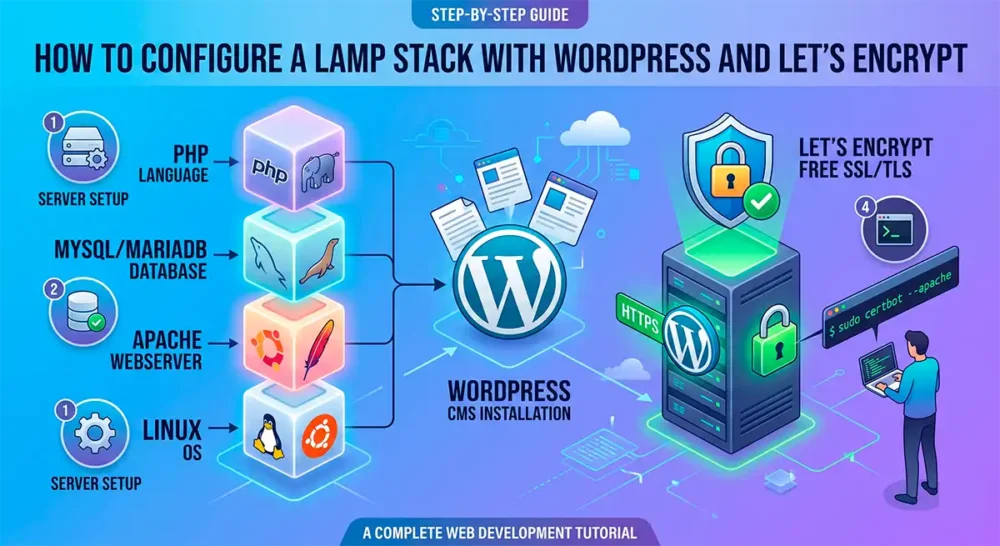
Setting up a LAMP server (Linux, Apache, MySQL/MariaDB, PHP) to run WordPress with HTTPS (Let’s Encrypt) is a fundamental system administration task.
Below is a straightforward and optimized guide, focused on Ubuntu 22.04/24.04 (the most common distribution for tutorials), but the concepts apply to other distributions as well.
Prerequisites
- A VPS/Dedicated server with root or sudo access.
- A domain name (e.g., yoursite.com) pointing to the server’s IP address (A records).
Step 1: Update the System and Install Apache
First, ensure that the repositories are up to date and install the web server.
sudo apt update && sudo apt upgrade -y
sudo apt install apache2 -yConfigure the Firewall (UFW):
Allow HTTP and HTTPS traffic.
sudo ufw allow in "Apache Full"Step 2: Install and Configure the Database (MariaDB)
MariaDB is generally preferred over MySQL because it is open-source and offers better performance.
Install:
apt install mariadb-server -yInitial Security: Run the security script. Answer Y to everything (remove anonymous users, disable remote root login, etc.).
sudo mysql_secure_installationCreate Database and User: Access the MariaDB console:
mysql -u root -pExecute the SQL commands below (replace strong_password):
CREATE DATABASE wordpress_db DEFAULT CHARACTER SET utf8 COLLATE utf8_unicode_ci;
CREATE USER 'wp_user'@'localhost' IDENTIFIED BY 'strong_password';
GRANT ALL ON wordpress_db.* TO 'wp_user'@'localhost';
FLUSH PRIVILEGES;
EXIT;Step 3: Install PHP and Extensions
WordPress requires several PHP extensions to function correctly (image processing, XML, database connection).
sudo apt install php libapache2-mod-php php-mysql php-curl php-gd php-mbstring php-xml php-xmlrpc php-soap php-intl php-zip -yTo check the installed version:
php -vStep 4: Configure Apache (Virtual Host)
Never edit the default file (000-default.conf). Create a specific one for your domain.
- Create a configuration file:
bash sudo nano /etc/apache2/sites-available/yoursite.com.conf - Paste the following content (replace yoursite.com with your domain):
<VirtualHost *:80>
ServerAdmin admin@yoursite.com
ServerName yoursite.com
ServerAlias www.yoursite.com
DocumentRoot /var/www/yoursite.com
<Directory /var/www/yoursite.com>
Options Indexes FollowSymLinks AllowOverride All Require all granted
</Directory>
ErrorLog ${APACHE_LOG_DIR}/error.log
CustomLog ${APACHE_LOG_DIR}/access.log combined
</VirtualHost>Enable the site and the Rewrite module (for WP Permalinks):
sudo a2ensite yoursite.com.conf
sudo a2enmod rewrite
sudo systemctl restart apache2Passo 5: Baixar e Configurar o WordPress
- Baixar a última versão:
cd /tmp curl -O https://wordpress.org/latest.tar.gz
tar xzvf latest.tar.gzMove to the correct directory:
sudo mkdir -p /var/www/yoursite.com
sudo cp -a /tmp/wordpress/. /var/www/yoursite.comAdjust Permissions (Critical): The Apache user (www-data) needs to own the files to install plugins and perform uploads.
sudo chown -R www-data:www-data /var/www/yoursite.com
sudo chmod -R 755 /var/www/yoursite.comStep 6: Configure HTTPS with Let’s Encrypt (Certbot)
This is the automated way to obtain a free SSL certificate. Before requesting, make sure to point the DNS type A entry with the domain to the server’s IP address.
- Install Certbot and the Apache plugin:
sudo apt install certbot python3-certbot-apache -yGenerate the certificate:
sudo certbot --apache- The script will ask for your email.
- It will ask if you accept the terms.
- Important: It may ask if you want to redirect HTTP traffic to HTTPS. Choose the Redirect option (2).
Certbot will automatically update the Apache configuration file that we created in Step 4.
Step 7: Finalization via Browser
Now, go to https://yoursite.com in your browser. You will see the WordPress installation screen.
Choose the language.
Enter the:
Database Name: wordpress_db
Username: wp_user
Password: your strong_password
Server: localhost
Technical Summary
| Component | Function | Key Configuration |
| Apache | Web Server | Enable mod_rewrite for friendly URLs. |
| MariaDB | Database | Use utf8_unicode_ci or utf8mb4 for character support. |
| PHP | Processor | Increase upload_max_filesize in php.ini if necessary. |
| Certbot | SSL | Adds an automatic cron job for certificate renewal. |
Click here to view our Server Management plans.
See also:
How to install Crowdsec
How to install Engintron(NGINX) cPanel/WHM
How to Install Portainer for Docker Management with Nginx Proxy Manager on Ubuntu
Web Server War: Apache vs. Nginx vs. Litespeed – Real benchmarks.
Benchmark Script on Linux
How to Create an OS Template in Virtualizor: Complete Guide 2025
Complete Guide to DirectAdmin for Administrators: Installation, Security, and Performance