
Every system administrator knows the scenario: monitoring triggers an alert, the website slows down, and clients start complaining. You access the server via SSH and need to find the root cause immediately. Is it an attack? A looping PHP script? Is the database consuming all the disk space?
At times like these, complex graphical tools can be too slow. You need the speed of the terminal.
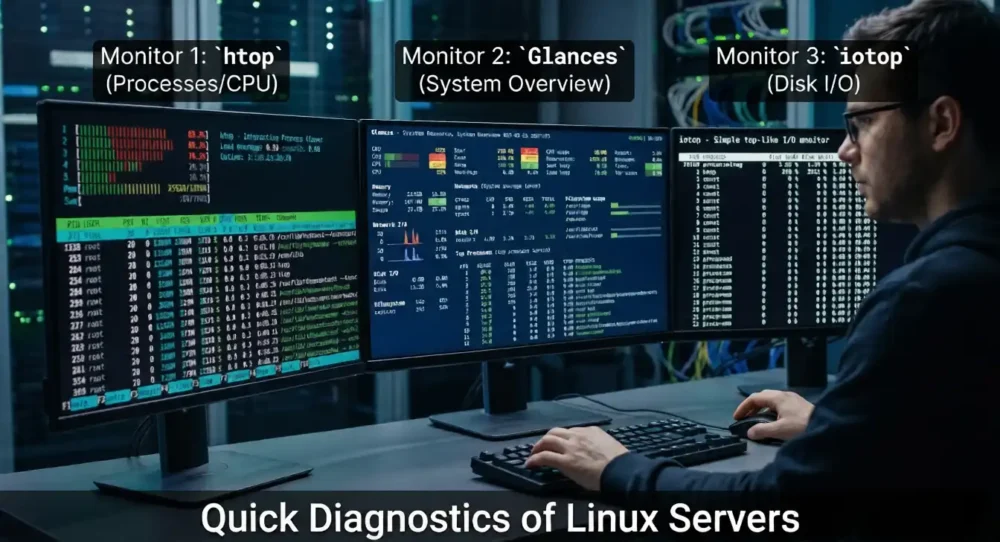
In this article, we’ll explore the “trinity” of quick diagnostics in Linux: htop (for CPU and RAM), iotop (for disk), and Glances (for an overview). See how to install them and, most importantly, how to interpret them.
1. htop: The Process Manager (CPU and RAM)
htop is the modern and colorful evolution of the classic top command. It allows you to scroll through the list of processes (vertically and horizontally) and interact using the mouse or keyboard.
What does it diagnose?
- CPU Spikes: Which process is “frying” the processor.
- Memory Leak: Processes that progressively consume RAM until they crash the server.
- High Load Average: Processing queue bottleneck.
Installation
# Debian/Ubuntun: sudo apt install htopn
# RHEL/AlmaLinux/CentOS (requires EPEL repository): sudo dnf install htopThe Quick Diagnostic Guide
When you open htop, immediately focus on these three points:
- Load Average: (Top Right Corner): You will see three numbers (average of 1, 5, and 15 minutes).
- Golden Rule: If the “Load” is greater than the number of cores on your server, the system is overloaded.
- Memory Bars: If the RAM bar is full and the “Swp” (Swap) bar starts to fill up, your server will become extremely slow.
- Essential Shortcut Keys:
- F6 (Sort By): The most important key. Sort by PERCENT_CPU to find stuck processes or PERCENT_MEM to find those consuming a lot of RAM.
- F4 (Filter): Type the service name (e.g., mysql or httpd) to clear the screen and focus only on it.
2. iotop: The Disk Detective (I/O)
Often, the server is slow, but htop shows the CPU is “spare.” The culprit is usually an I/O bottleneck (Disk Read and Write). If the disk doesn’t respond quickly enough, the entire system freezes waiting.
What does he diagnose?
- Large backups running at inappropriate times.
- Database performing massive reads.
- Excessive swap usage.
Installation
# Debian/Ubuntu: sudo apt install iotop
# RHEL/AlmaLinux: sudo dnf install iotopThe “Only” Trick
iotop requires sudo. By default, it shows many processes with zero activity. For quick diagnosis:
- Execute:
sudo iotop. - Press the O key: This activates Only mode, displaying only processes that are currently writing to or reading from the disk.
- Look at the IO > column: This column shows the percentage of time the process has spent waiting for the disk. If it is high (above 40-50%), the disk is your problem, not the CPU.
3. Glances: The Complete Control Panel
While htop and iotop are tools with a specific focus, Glances is a general control panel. It condenses CPU, RAM, Disk, Network, Temperatures, and even Containers onto a single screen.
What does he diagnose?
- Network Bottlenecks: Saturated download/upload speeds (e.g., DDoS attacks or file transfers).
- Historical Alerts: Glances records past spikes.
- Disk Space: Quick monitoring of full partitions.
Installation
The most practical way is via the official script:
For Ubuntu
apt install glancesFor Almalinux/Rock Linux/RHEL
dnf install glancesHolistic Vision
Glances uses colors to indicate health: Green (OK), Violet (Alert), and Red (Critical).
The great advantage of Glances for quick diagnostics is the NETWORK section. If the server is slow, but CPU and Disk are normal, look at the network Rx/Tx. You may have saturated bandwidth.
Summary: Which tool to use and when?
To help you make a decision in the heat of the moment, use this table:
| Server Symptom | Tool | What to look for |
| High fan speed / Slow speed | htop | Sort by CPU% (F6). |
| Error “Out of Memory” | htop | Sort by MEM% or check Swap. |
| Slow Database | iotop | Check column IO > and current writes. |
| Site crashing (Timeout) | glances | Check Network Rx/Tx and Load. |
| General Monitoring | glances | Leave it open on a second monitor. |
Conclusion
Don’t try to guess what’s wrong with your server. With htop, iotop, and glances, you have accurate data to make decisions, whether it’s optimizing a MySQL configuration, blocking an abusive IP, or simply restarting a crashed service. Install these tools today and be prepared for the next emergency.
Click here to view our Server Management plans.
FAQ
The primary purpose is to grant system administrators, SREs, and DevOps professionals real-time, high-density visibility into server health. These tools allow for rapid infrastructure monitoring, metric inspection (CPU, Memory, Disk I/O, Network), and active bottleneck troubleshooting during critical production incidents or standard maintenance operations.
htop represents an interactive, modern evolution of the classic top utility. You should choose htop because it provides:
A visually intuitive, color-coded dashboard featuring resource progress bars for CPU cores, RAM, and Swap.
Full mouse support and streamlined keyboard shortcuts (such as F6 for custom sorting and F9 for signaling/killing processes).
A hierarchical process tree view (triggered with the t key), making it easy to identify parent-child process relations (e.g., Apache workers or isolated PHP-FPM pools).
When an infrastructure server is sluggish or experiencing high CPU load averages:
Launch htop and press F6 (or click on the SortBy interactive menu).
Select the CPU% column to immediately bubble up the processes demanding the highest processor cycles.
If you identify an illegitimate or stalled process (e.g., a rogue PHP script trapped in an infinite loop), you can terminate it directly by pressing F9 and issuing a SIGTERM (15) or an immediate SIGKILL (9).
At the top-left of the
htop header, monitor the Mem (RAM) and Swp (Swap) saturation levels. If physical RAM is exhausted and Swap usage is rapidly climbing or maxed out, the system is highly susceptible to triggering the kernel’s OOM Killer, which forcibly terminates vital services (like MySQL/MariaDB or Nginx) to protect the OS kernel.
Press F6 and sort by the MEM% column to pinpoint the exact applications causing memory leaks or suffering from oversized configuration buffers.
While htop shows broad system states, it does not explicitly map individual disk read/write throughput to specific Process IDs (PIDs). iotop functions as an I/O-centric monitor. It is absolutely indispensable when a server exhibits severe latency but CPU and RAM consumption appear normal. This state usually indicates that the CPU is stalled waiting for storage operations to finish, known as high I/O Wait.
Launch iotop (which requires root or elevated sudo privileges) and focus on the IO > column.
To filter out systemic noise and display only the processes actively conducting disk input/output operations at that precise moment, press the o key (or run the tool with the iotop -o flag).
This immediately highlights whether a MySQL query, an unthrottled backup task, or a cron synchronization script is exhausting the disk’s IOPS capacity.
glances delivers a unified, “all-in-one” single-screen operational dashboard. Developed in Python, its defining characteristic is information density. It consolidates CPU, Memory, Load Average, Disk I/O, Network interface bandwidth, File System allocations, and hardware sensors into one dynamic layout. Furthermore, it features color-coded state indicators (Green, Blue, Violet, Red) matching configurable threshold severities.
Yes. glances features an embedded web server daemon. You can spin up the web-based monitoring mode by executing:glances -w
This initiates a web listener on the default port 61208. You can then access the live diagnostic dashboard from any browser by navigating to http://YOUR_SERVER_IP:61208, removing the need to keep persistent SSH sessions open solely for visual metrics checkups.
See More: How to install Glances to monitor the server
See More: How to check disk I/O speed in linux
Veja Mais: Como instalar Glances para monitorar o servidor
Veja Mais: Como verificar no linux a velocidade de I/O do disco
Veja Mais: Guia Completo do DirectAdmin para Administradores | Instalação, Segurança e Performance