
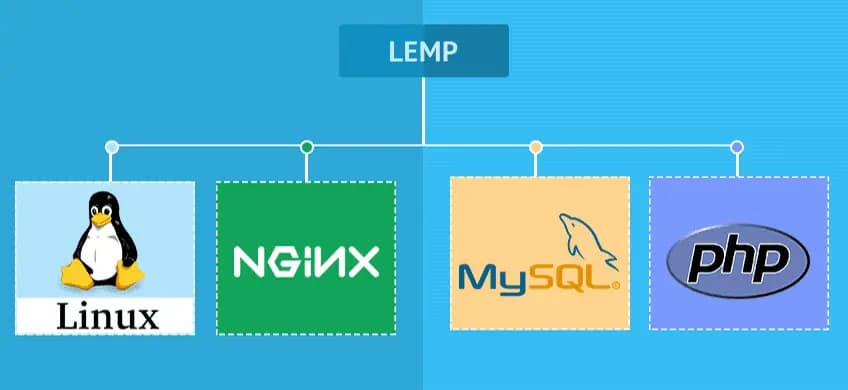
The LEMP (Linux, Engine-X/Nginx, MySQL/MariaDB, PHP) configuration is often the preferred choice for high-traffic WordPress sites due to Nginx’s event-driven architecture, which handles simultaneous connections more efficiently than Apache.
Here is the step-by-step guide for Ubuntu 20.04/22.04/24.04.
Step 1: Install Nginx
Unlike Apache, Nginx is lightweight and serves static files very quickly.
Install:
sudo apt update sudo apt install nginx -y
Configure Firewall (UFW):
sudo ufw allow 'Nginx Full'
Check status: Access the server’s IP address in your browser. You should see the “Welcome to nginx” screen.
Step 2: Install and Configure MariaDB
Install and protect:
sudo apt install mariadb-server -y sudo mysql_secure_installation
Criar Banco de Dados:
mysql -u root -p
CREATE DATABASE wordpress_db DEFAULT CHARACTER SET utf8mb4 COLLATE utf8mb4_unicode_ci;
CREATE USER 'wp_user'@'localhost' IDENTIFIED BY 'strong_password';
GRANT ALL ON wordpress_db.* TO 'wp_user'@'localhost';
FLUSH PRIVILEGES;
EXIT;
Step 3: Install PHP (PHP-FPM)
Nginx does not natively process PHP; it passes the request to PHP-FPM (FastCGI Process Manager).
Install PHP-FPM and extensions:
sudo apt install php-fpm php-mysql php-curl php-gd php-mbstring php-xml php-xmlrpc php-soap php-intl php-zip imagick -y
Check the installed PHP version: Knowing the version (e.g., 8.1, 8.2, 8.3) is crucial for correctly configuring Nginx in the next step: php -v
Step 4: Configure the Nginx Server Block
This is the most critical part and where it differs from Apache (there is no .htaccess file here).
- Create the configuration file:
sudo nano /etc/nginx/sites-available/seusite.com - Paste the configuration next to it: Attention: Adjust the fastcgi_pass path according to your PHP version (e.g., php8.1-fpm.sock or php8.3-fpm.sock)
- Activate the website and test it:
sudo ln -s /etc/nginx/sites-available/seusite.com /etc/nginx/sites-enabled/sudo nginx -t
Se onginx -tder “syntax is ok”, prossiga:sudo systemctl reload nginx
server {
    listen 80;
    server_name seusite.com www.seusite.com;
    root /var/www/seusite.com;
    index index.php index.html index.htm;

    # Logs
    access_log /var/log/nginx/seusite.com.access.log;
    error_log /var/log/nginx/seusite.com.error.log;

    # Regra principal para WordPress (Permalinks)
    location / {
        try_files $uri $uri/ /index.php$is_args$args;
    }

    # Processamento PHP
    location ~ .php$ {
        include snippets/fastcgi-php.conf;
        # VERIFIQUE A VERSÃO ABAIXO (ls /run/php/)
        fastcgi_pass unix:/run/php/php8.1-fpm.sock;
    }

    # Bloquear arquivos sensíveis e .htaccess (inútil no Nginx mas bom esconder)
    location ~ /.ht {
        deny all;
    }

    # Otimização para arquivos estáticos (Cache no navegador)
    location ~* .(css|gif|ico|jpeg|jpg|js|png)$ {
        expires max;
        log_not_found off;
    }
}
Step 5: Download WordPress
sudo mkdir -p /var/www/seusite.com
cd /tmp
curl -O https://wordpress.org/latest.tar.gz
tar xzvf latest.tar.gz
sudo cp -a /tmp/wordpress/. /var/www/seusite.com
Correct Permissions:
sudo chown -R www-data:www-data /var/www/seusite.com
sudo chmod -R 755 /var/www/seusite.com
Step 6: HTTPS with Let’s Encrypt
Create an A DNS record pointing the domain to the server’s IP address.
Install the Certbot plugin specifically for Nginx.
sudo apt install certbot python3-certbot-nginx -y
Generate Certificate:
sudo certbot --nginx
Certbot will read your server block (Step 4) and configure SSL automatically, asking if you want to force HTTPS redirection (Recommended: choose 2).
Key Differences: Apache vs. Nginx
| Feature | Apache (LAMP) | Nginx (LEMP) |
| Settings | Use .htaccess (easy for end users). | Centralized configuration (nginx.conf). Does not read .htaccess. |
| Architecture | Connection-based processing (may consume a lot of RAM). | Event-driven (asynchronous), it handles thousands of connections with limited RAM. |
| PHP | Usually mod_php. | Always via PHP-FPM (faster loading). |
| Permalinks | Automatic via mod_rewrite. | It requires the line try_files $uri $uri/ /index.php... to be added manually. |
Using Permalinks with Nginx
This is the most common question when migrating from Apache to Nginx. Since Nginx doesn’t read .htaccess files, you need to translate the rewrite logic directly into the server block configuration file.
To make Permalinks work—for example, transforming site.com/?p=123 into site.com/post-name—follow these steps:
Edit your website’s configuration file
Open your domain’s configuration file (usually located in /etc/nginx/sites-available/):
sudo nano /etc/nginx/sites-available/seusite.com
Configure the try_files directive
Locate the location / block. It is probably either empty or looks like this:
Nginx
location / {
    # Conteúdo antigo ou apenas try_files $uri $uri/ =404;
}
Replace (or edit) this block to look exactly like this:
Nginx
location / {
    try_files $uri $uri/ /index.php$is_args$args;
}
What does this magic line do?
Nginx processes this order from left to right:
$uri: Checks if a physical file with that name exists (e.g., a logo.png image). If it exists, it delivers the file.
$uri/: Checks if a directory with that name exists. If it exists, it tries to open its index.
/index.php$is_args$args: If no file or folder is found, it sends the request to WordPress (index.php) to process. This is where WordPress “reads” the friendly URL and displays the correct page.
Complete Block Example (Context)
To ensure you are inserting it in the correct place, your file should look like this:
Nginx
server {
    listen 80;
    server_name seusite.com;
    root /var/www/seusite.com;
    index index.php index.html;

    # --- AQUI ESTÁ A CONFIGURAÇÃO DOS PERMALINKS ---
    location / {
        try_files $uri $uri/ /index.php$is_args$args;
    }
    # -----------------------------------------------

    location ~ .php$ {
        include snippets/fastcgi-php.conf;
        fastcgi_pass unix:/run/php/php8.1-fpm.sock; # Ajuste sua versão do PHP
    }
}
Test and Restart
Always check the syntax before restarting to avoid crashing the server.
sudo nginx -t
If possible “syntax is ok”:
sudo systemctl reload nginx
Save the Permalinks in WordPress
This step is crucial and often forgotten:
Access the WordPress dashboard (/wp-admin).
Go to Settings > Permalinks.
Select the desired structure (e.g., “Post Name”).
Click Save Changes.
This forces…WordPress is updating its internal routing structure to match the new freedom that Nginx has provided.
Próximo passo módulo FastCGI Cache
One of the biggest advantages of using Nginx is the FastCGI Cache module, which allows you to cache the entire page directly in RAM, eliminating the need for heavy caching plugins in WordPress. Below are instructions for configuring the FastCGI module.
Step 1: Define the Cache Zone (nginx.conf)
First, we need to tell Nginx where to store the cache and what size to allow.
Edit the main configuration file:
sudo nano /etc/nginx/nginx.conf
Inside the http { … } block, before the line include /etc/nginx/sites-enabled/*;, add the following:
Nginx
# Configuração FastCGI Cache
fastcgi_cache_path /var/cache/nginx/wordpress_cache levels=1:2 keys_zone=WORDPRESS:100m max_size=10g inactive=120m use_temp_path=off;
fastcgi_cache_key "$scheme$request_method$host$request_uri";
fastcgi_ignore_headers Cache-Control Expires Set-Cookie;
- keys_zone: We named the area “WORDPRESS” and allocated 100MB of RAM to store the keys.
- max_size: 10GB of disk space for caching (adjust according to your disk size).
- inactive: If a cache is not visited within 120 minutes, it is deleted.
Passo 2: Configurar as Exceções (No seu Virtual Host)
We don’t want to cache everything. Admin panels, logged-in users, and checkout pages (if using WooCommerce) cannot be cached.
Edit your site’s file:
sudo nano /etc/nginx/sites-available/seusite.com
Add this block before the location block.
# Lógica para ignorar o cache (Skip Cache)
set $skip_cache 0;

# POST requests e URLs com query string devem ir diretos ao PHP
if ($request_method = POST) { set $skip_cache 1; }
if ($query_string != "") { set $skip_cache 1; }

# Não fazer cache de URIs especiais (Admin, Feed, XMLRPC)
if ($request_uri ~* "/wp-admin/|/xmlrpc.php|wp-.*.php|^/feed/*|/index.php|sitemap(_index)?.xml") {
    set $skip_cache 1;
}

# Não fazer cache para utilizadores logados ou que comentaram recentemente
if ($http_cookie ~* "comment_author|wordpress_[a-f0-9]+|wp-postpass|wordpress_no_cache|wordpress_logged_in") {
    set $skip_cache 1;
}
Step 3: Enable Caching in the PHP Block
Still within the same file (sites-available/yoursite.com), locate your location ~ .php$ block. You will need to add the caching directives there.
It should look something like this:
location ~ .php$ {
    include snippets/fastcgi-php.conf;

    # Confirme se o socket corresponde à sua versão (ex: php8.1-fpm.sock)
    fastcgi_pass unix:/run/php/php8.1-fpm.sock;

    # --- ATIVAÇÃO DO CACHE ---
    fastcgi_cache WORDPRESS;
    fastcgi_cache_valid 200 301 302 60m;
    fastcgi_cache_use_stale error timeout updating invalid_header http_500 http_503;
    fastcgi_cache_min_uses 1;
    fastcgi_cache_lock on;

    # Aplica as regras de exclusão que criámos acima
    fastcgi_cache_bypass $skip_cache;
    fastcgi_no_cache $skip_cache;

    # Adiciona um cabeçalho para sabermos se o cache funcionou (HIT ou MISS)
    add_header X-FastCGI-Cache $upstream_cache_status;
}
Step 4: Apply and Test
Check the syntax: sudo nginx -t
Restart Nginx: sudo systemctl reload nginx
Test: Open your website in an incognito window (so you are not logged in). Inspect the page (F12), go to the Network tab, reload the page and click on the first resource (your domain). Look in the “Response Headers”:X-FastCGI-Cache: MISS (On the first visit, Nginx is creating the cache).X-FastCGI-Cache: HIT (Reload the page. If you see HIT, the cache is working and the page was served instantly).
Step 5: Install Plugin for Automatic Cleaning
Nginx doesn’t know when you publish a new article. You need a WordPress plugin to tell Nginx to clear the cache.
In WordPress, install the Nginx Helper plugin (author: rtCamp).
Activate it and go to Settings > Nginx Helper.
Under Purging Method, select: nginx Fastcgi cache.
Confirm that the path in Cache path is /var/cache/nginx/wordpress_cache (same as step 1).
Enable the purge options when a post is edited, published, or deleted.
Veja também:
Antivírus, Antimalware, Antiphishing no Almalinux ou CentOS com ClamAV
Como Instalar Openlitespeed no Ubuntu 20.04
Criando atalho para listar diretórios e arquivos em ordem crescente
Guia Completo de Administração de Servidores Linux para Iniciantes
In English: